Here’s a quick tip if you quickly need some audio or video transcribing. You already have a transcription service but probably didn’t have a clue it was there all the time. If you have an Office 365 subscription, there is a transcribe option in both the browser and app version tucked away under the Dictate button. It’s not the most accurate but it will do in a pinch and get you going.
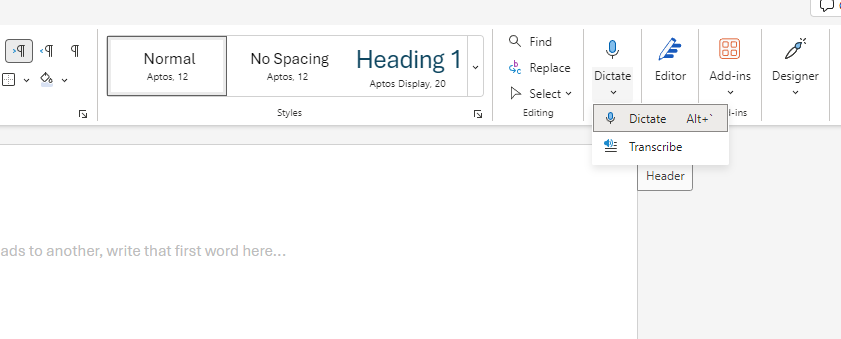
Here’s the Transcribe option hidden under the Dictate option in Microsoft Word.
See that Dictate option in Word? Drop down the little arrow, click Transcribe and a panel will open on the right.
Don’t see the Dictate button? You might have to add it to the ribbon bar (the bit at the top with all the icons). Right click on the ribbon then go to Customize The Ribbon. You can add it via the options there on the right.
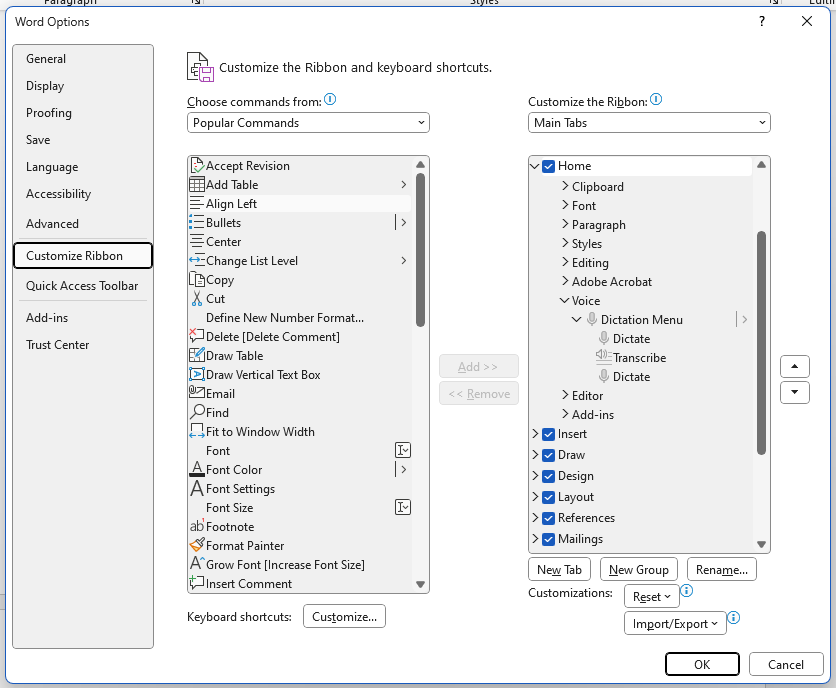
Customise the Ribbon options in Word. Check here to see if the Dictate or Transcribe option is missing.
At the top of the panel, you can upload an audio file. Be aware there's a time and a size limit - you only get about 300 mins per month (which is probably plenty). If you’ve also got a chunky Wav file, I recommend cutting down the file size to an mp3 to make the upload and processing times less cumbersome.

Uploading audio options for dictation in Word. The cat is probably listening to System Of A Down or Pennywise.
Leave it to trundle away for a bit and it should pop up with your text. Here you can change the speaker name and cascade it down so you don’t have to do it manually once you’ve directly added it into the document. You can also choose to add it as completely plain text or with Speaker and/or Timestamp options.
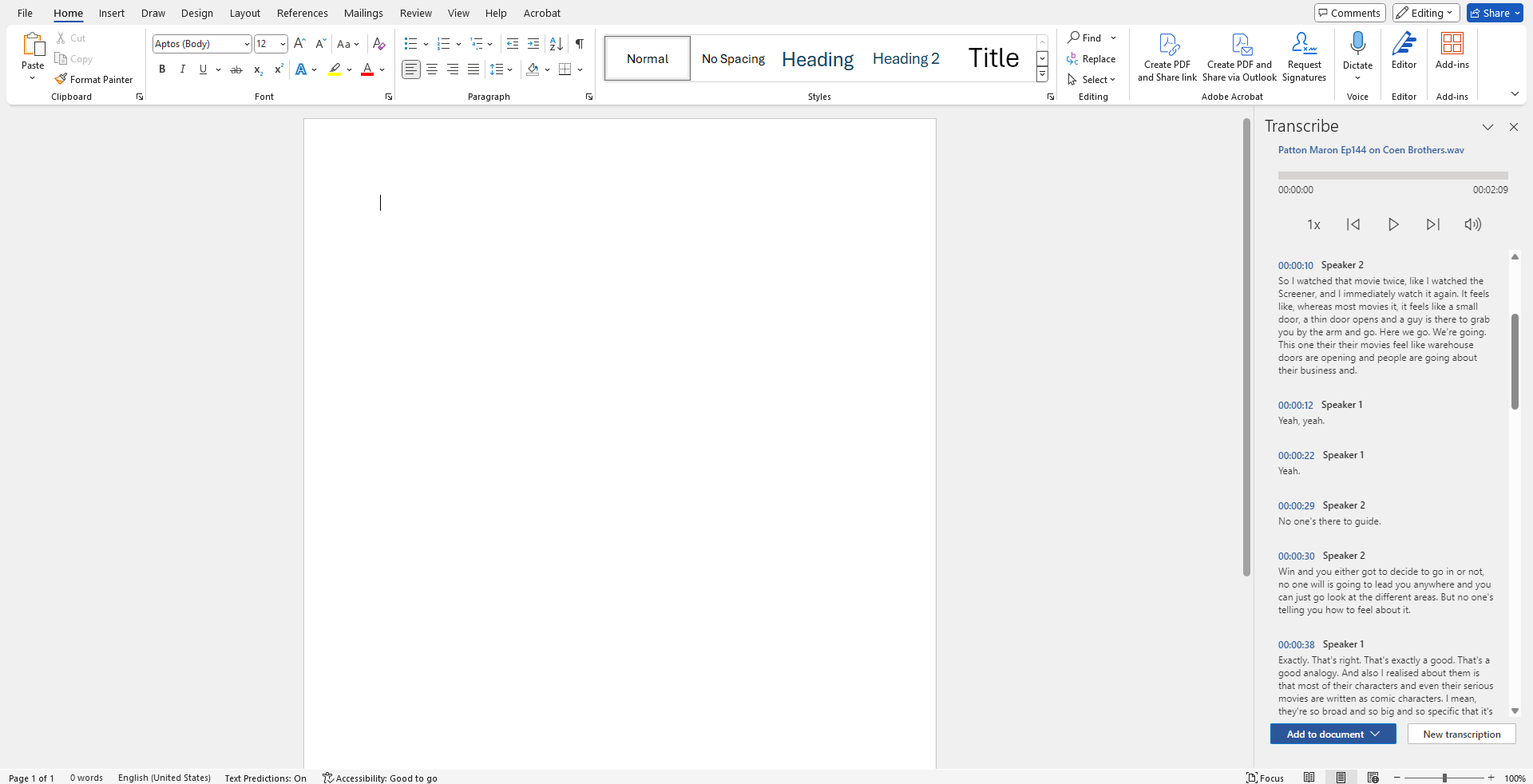
This will show up on the right after you’ve finished uploading your audio. Here’s a clip of Patton Oswalt and Marc Maron talking about the Coen Brothers.

Here I’ve added the text with timestamp and speakers into the main document. From here you can edit it down to be more useable, removing repetition or misspelt words.
There you go. It’s not the bestest out there (people seem to like Otter AI - I’ve never properly used it so couldn’t comment) and it struggles a bit with mixing speakers together and anyone with a heavy accent (good luck to you in Northern Ireland and Cornwall).
You might also want to check what version of Word you have - this was only in the browser version for a while but seems to have popped up in the app (at least on Windows 11, I can’t vouch for others). Word for Mac doesn’t have this option as far as I can see - I haven’t upgraded for a while so maybe it’s in a newer update?
While you’re fiddling about with this, why not also give the Dictate function a go? Just have a chat/ramble to yourself while dictating into the mic about whatever comes into your head. There’s also a dictate option in Google Docs too, so give that a go for a comparison.