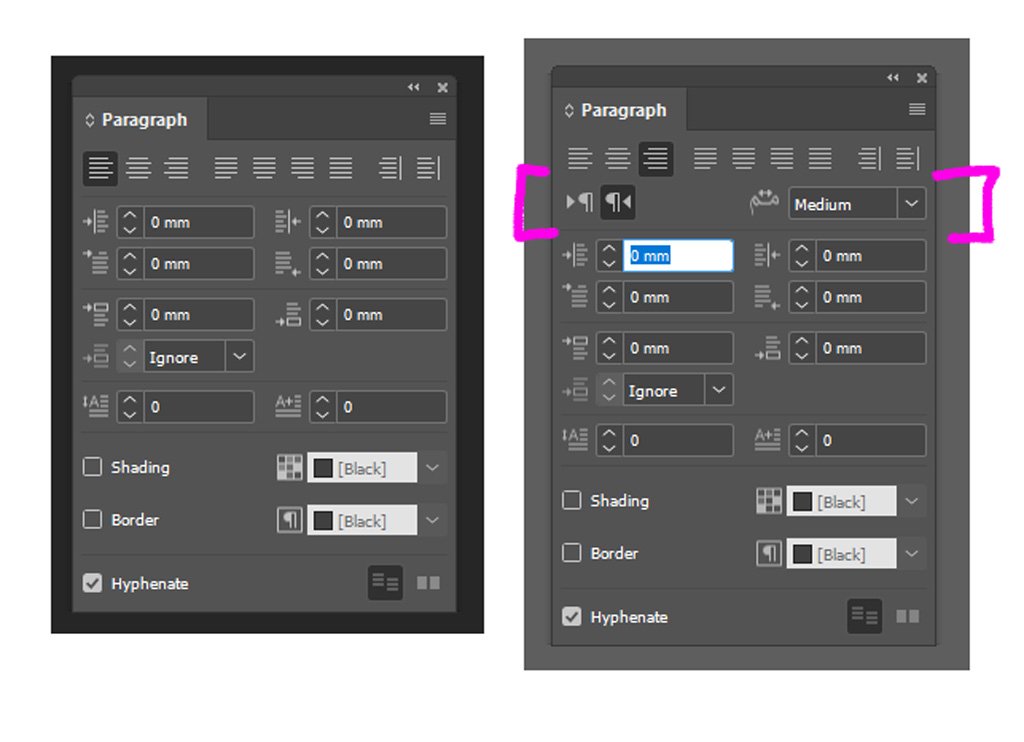
The extra options that pop up when you activate a different language in InDesign - in this case Arabic or Right To Left.
Say you have a client who needs documents localised once you’ve done an English language version for other regions. There’s no easy way of copying and pasting Arabic directly from Word into InDesign without it not coming out quite as correct as you need it (it won’t go Right to Left properly, if you have to put breaks or spaces in the text to fit a text box it wibbles off and changes). Installing a localised version should help you with the Right To Left set up and eliminate most of those problems.
I have worked on different language InDesign files in the past including Arabic, Chinese and Japanese. Annoyingly there’s no easy way of just doing all languages in one setup and document, I’m assuming it’s a leftover of when you used to have to buy a completely separate Middle East version of the Creative Suite or its precursors. So you have to resort to fiddling about a bit.
Two methods (with a happy middle third option at the end of the post)
There’s two ways of doing this. Both involve a bit of faffing about and it also depends on how comfortable you feel tinkering with things under the hood.
One: Having a separately installed version of InDesign set up for a specific language.
This method involves having a completely different installation of InDesign for a particular language. You select a different language from the Adobe Creative Cloud Installer then install a new version of InDesign.
While you’re doing this, I would also switch off Auto-update and switch on Show Older Apps so you can see which versions you’re currently running and also not have Creative Cloud doing updates - you don’t want the extra faff of having to fiddle about with different files that relate to different versions.
In the Creative Cloud app, go to File > Preferences > Language then look at the language dropdown. For me in the UK it is English (International) and I want to swap it to English Arabic (the option above English (International)). Click this option then click Done - there might be a slight pause while it seems to be thinking about something.
Using the install language drop down menu in the Creative Cloud app.
Next click the Apps icon on the left hand of the Creative Cloud app. You might see that your apps like InDesign, Illustrator and Premiere that previously had the Open option now say Install.
Install a version of InDesign by clicking the Install button. Note in the past I have installed a slightly older previous version just so when the loading screen comes up, you can see from the artwork which version it is. If you want the older version, just click the three dots to the left of the install button.
The trick to this is remembering which version you’re working on. I tend to set InDesign’s colour palette differently in the Edit > Preferences > Interface options so I can have the International English install as a dark black background and the Arabic install as a lighter grey version. This gives me an extra clue to see what installation I’m working on.
This is the app screen you’ll see when the language is set to English (International).
This is the app screen I now see after changing the language to English Arabic.
This is the three dot pop up to select older versions.
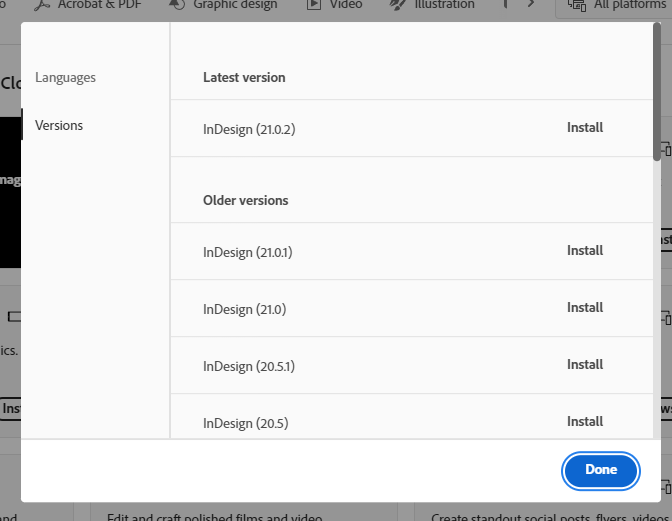
Older versions listed.
Note this method also works for Adobe Illustrator too.
Two: Editing a settings file to switch to another language
This comes courtesy of a post by Dr Ken Lunde. It involves either copying and pasting over a settings file (Mac OS) or changing a value in the registry (Windows). Both are easy to do but with the caveat that you might not feel comfortable with tinkering in settings files. You may also not be able to do this (for example your work IT department may have locked down the ability to do this.
This method involves changing a number in a settings file - in his example Dr Ken Lunde does it for Japanese but he also gives the number for Arabic. There may also be other numbers for languages such as Hebrew but they’re not mentioned here.
Please read his full post for instructions: Adobe InDesign Tips: Japanese/CJK Functionality + English UI—Redux
The advantage of this is you’ll be able to do it on the fly just from changing the number and then reopening InDesign. However if you have more than one job on the go, the first method might work a bit better as you can have an install for both English and Arabic.
Update Nov 2025:
Jack Weekes has made a script that switches between the two (as linked to in the comments at the bottom of the Ken Lunde page).
InDesign Feature Set Locale Switcher (GitHub link)
I’ve done a quick test in Windows and it seems to work fine. Running the script will come in with a warning saying “Are you sure you want to change InDesign’s feature set locale”? This will quite the program once you select either Right to Left (for Arabic) or Japanese, which you then reopen InDesign and you’ll have some new options (in this case RTL Arabic).
IMPORTANT TO NOTE: when you reload the Arabic / Middle East version, all of your preferences will have been reset including the Scripts panel being empty and the annoying home screen will be back. As the home screen is back, you won’t be able to open the Scripts panel to turn your InDesign back to your old set up.
To get rid of your home screen, go to Edit > Preferences > General. Untick Show Home Screen When No Documents Are Open which should remove it.
You can then open your Scripts panel (Window > Utilities > Scripts). Scripts will be empty but don’t worry, it’s all there. You now have two sets of app preference folders:
C:\Users\<yourusername>\AppData\Roaming\Adobe\InDesign\Version 20.0\en_GB\Scripts\Scripts Panel - your original preference folder.
C:\Users\<yourusername>\AppData\Roaming\Adobe\InDesign\Version 20.0-ME\en_GB\Scripts\Scripts Panel - your new preference folder.
You can simply copy the scripts back from the original preference folder to the new preference folder and then run the script. Once you close and reload, your original layout set up should be back. If you haven’t done this in a while, now is a good time to save your workplace layout (Windows > Workplace > New Workplace).
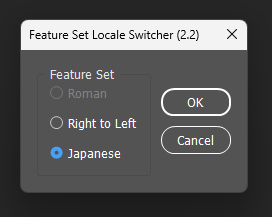
This pop up shows how switch between Roman (English UK), Right To Left and Japanese. Japanese is selected.
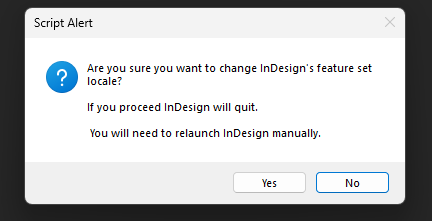
This warning will pop up before it makes changes to the windows registry.
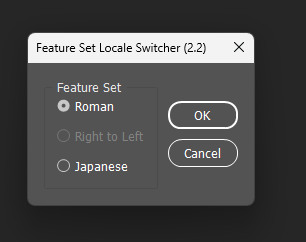
This pop up shows the option to move back from Right To Left (Arabic) to Roman (English UK).